Advanced-etl-processor
Spit File Dynamic Action
About
The Spit File Action divides a text file into smaller files containing a fixed number of rows.
Metadata tab
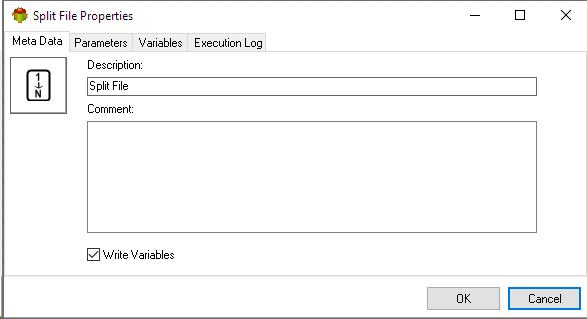
- The Write Variables option ensures that the “Package Action” logs the variable values into the “Action vars before log file” before the action is executed and logs the updated variable values into the “Action vars after log file” after the action completes.
- This option is typically used for debugging and is not recommended in a production environment.
- It can be globally disabled through the options dialog .
Parameters tab
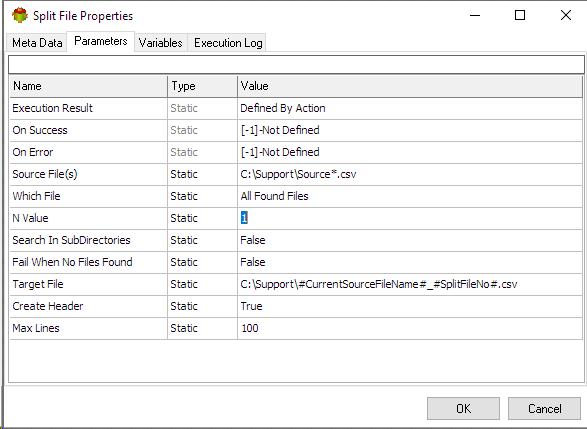
N Value Parameter
The meaning of N Value parameter depends on Which File Parameter
- When Which File Parameter is equal to “Files Not Older Than N Days” N Value is Days
- When Which File Parameter is equal to “Files Older Than N Days” N Value is Days
- When Which File Parameter is equal to “First N Found Files” N Value file number
- When Which File Parameter is equal to “Bigger Than N Bytes” N Value is byte
To minimize potential issues, avoid using mapped drives and opt for the UNC (Universal Naming Convention) path instead. Mapped drives can lead to problems with accessibility and permissions, especially in networked environments or automated processes. UNC paths provide a direct, reliable way to reference network resources without relying on local drive letters, ensuring better stability and consistency across different systems and users.
Target Files Parameter
Note: The target file parameter is calculated every time new split file is created.
There are a number of variables which can be used to calculate target file name.
| Variable | Description |
|---|---|
| #CurrentSourceFileName# | This variable holds source file name without path or expansion |
| #CurrentSourceFileExt# | This variable holds Current Source File Extension |
| #SplitFileNo# | This variable holds sequential Split File Number |
| #CurrentSourceFileNumber# | This variable holds sequential Source File Number |
| #CurrentSourceFile# | This variable holds Source File Name including path and extensionThis variable holds Source File Name including path and extensionThis variable holds Source File Name including path and extensionThis variable holds Source File Name including path and extension |
Example
C:\Support\#CurrentSourceFileName#_#SplitFileNo##CurrentSourceFileExt#
Variables tab
The Variables tab defines which variables are updated during the execution of the action.
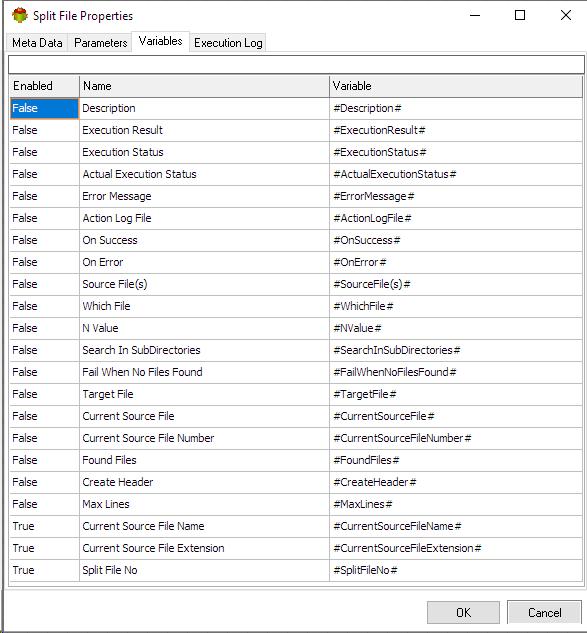
Tip: Double-click a variable name to enable or disable it.it
Execution log tab
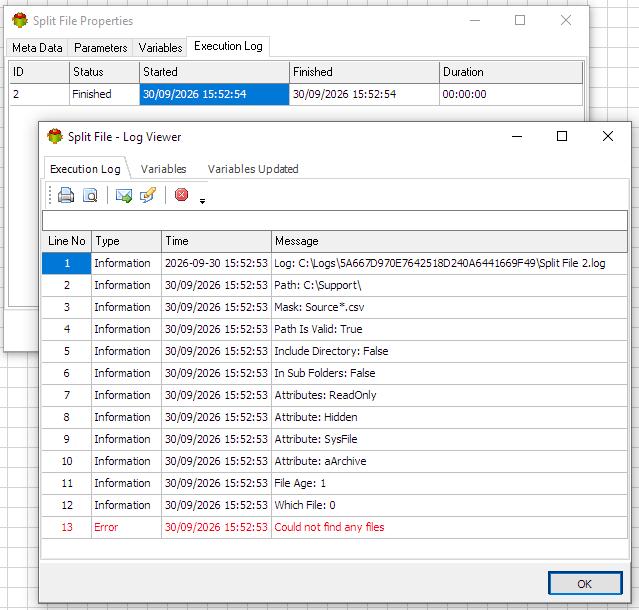
The Execution Log tab is populated after the action has been executed. Double-click a row to view the detailed execution log.
Related Actions
- Change Encoding Action
- Compare Files Action
- Check File Action
- Check File Date Action
- File Meta Data Action
- Split File Action
- Copy File Action
- Split File Action
- Move File Action
- Rename File Action
- Delete File Action
- Keep File Action
- Merge File Action
- Change File Attributes Action
- Files List Action
- Replace String Action
- Open File Action
- Encrypt Action
- Decrypt Action
Useful Links
Video Tutorial
We have more videos on ETL-Tools.com YouTube Channel,
Please take a look and subscribe to stay updated with the latest content.
For more technologies supported by our ETL Software see Advanced ETL Processor Versions
Confused? Ask question on our ETL Forum