Advanced-etl-processor
Check If Sheet Exists Dynamic Action
About
The Check If Excel Sheet Exists workflow action is a valuable tool designed to verify the existence of a specific sheet within an Excel file. This action is particularly useful in automated workflows where working with Excel files is essential, as it ensures that operations dependent on the presence of a particular sheet can proceed without errors. By confirming whether the target sheet exists, this action helps streamline processes and avoid potential issues related to missing data or incorrect references.
Metadata tab
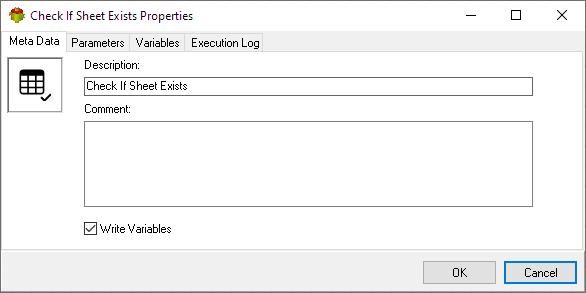
- The Write Variables option ensures that the “Package Action” logs the variable values into the “Action vars before log file” before the action is executed and logs the updated variable values into the “Action vars after log file” after the action completes.
- This option is typically used for debugging and is not recommended in a production environment.
- It can be globally disabled through the options dialog .
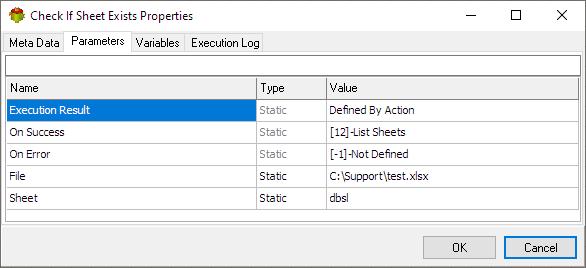
Parameters tab
Variables tab
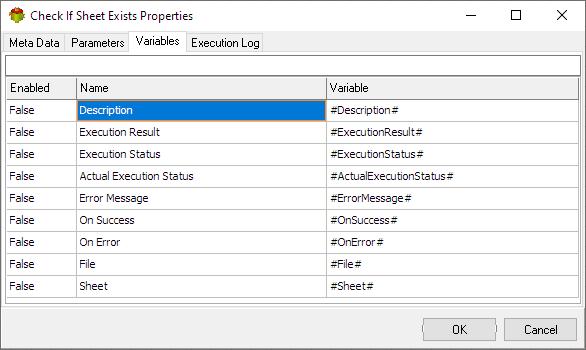
The Variables tab defines which variables are updated during the execution of the action.
Execution log tab
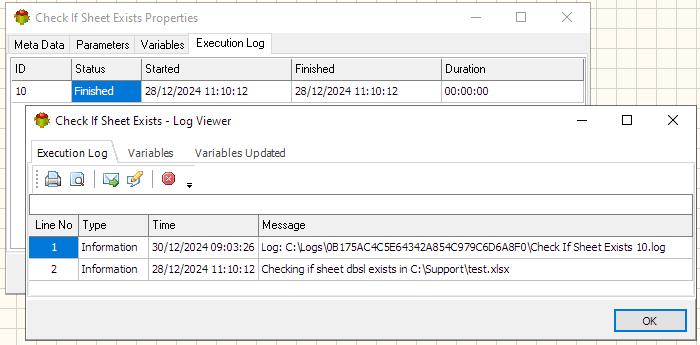
The Execution Log tab is populated after the action has been executed. Double-click a row to view the detailed execution log.
Example: Calculated Excel File Name
Pascal
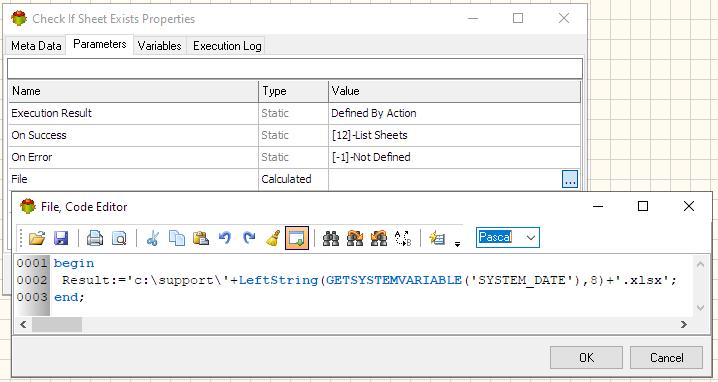
begin
 Result:='c:\support\'+LeftString(GETSYSTEMVARIABLE('SYSTEM_DATE'),8)+'.xlsx';
end;
Python
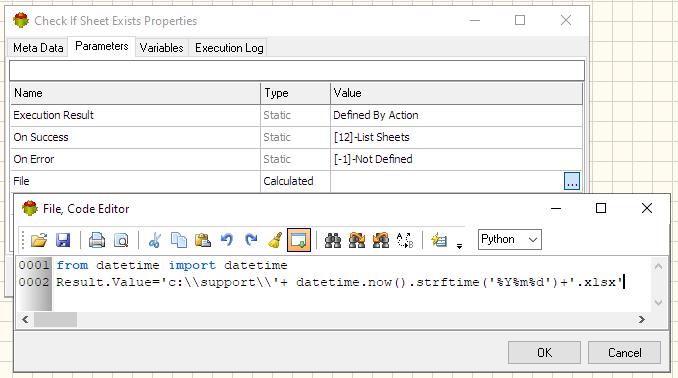
from datetime import datetime
Result.Value='c:\\support\\'+ datetime.now().strftime('%Y%m%d')+'.xlsx'
Related Actions
- Check Excel File Action
- Merge Excel Files Action
- Change Excel File Extension Action
- Set Excel Cell Color Action
- Set Excel Cell Value Action
- Read Excel Cell Value Action
- Add Sheet Action
- Delete Sheet Action
- Keep Sheet Action
- Rename Sheet Action
- Set Active Sheet Action
- Check if sheet exists Action
- List Sheets Action
Useful Links
Video Tutorial
For more technologies supported by our ETL Software see Advanced ETL Processor Versions
Confused? Ask question on our ETL Forum