Advanced-etl-processor
Microsoft SQL Server Connection
The procedure for many database connections is very similar. In the case of MS SQL Server, it is necessary to specify the server, database name and user name/password combination.
Connection
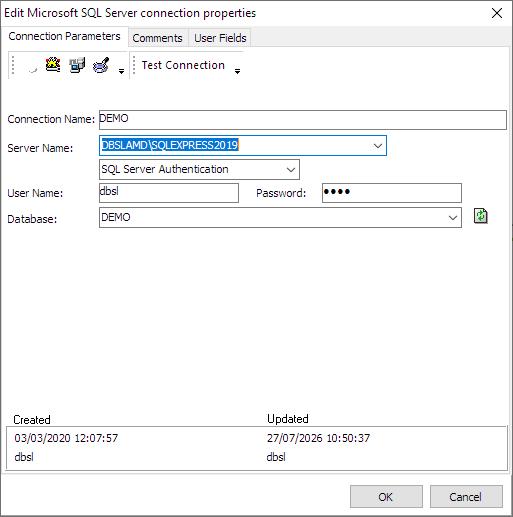
Creating New Connection
- In the Name Text Box type in a new name for the connection you are about to create
- Select a Server Name from Server Drop Down List
- Select Authentication Method
- Select a Database Name from the Drop Down List
- Fill in Username/Password for the database you wish to connect to
- Click Test to ensure the details you have provided are correct
- Click OK to close the connection properties window
To connect using different port use “server name,port” format
If you are unsure of these parameters, please contact your Database Administrator for the correct settings.
Comments
User fields
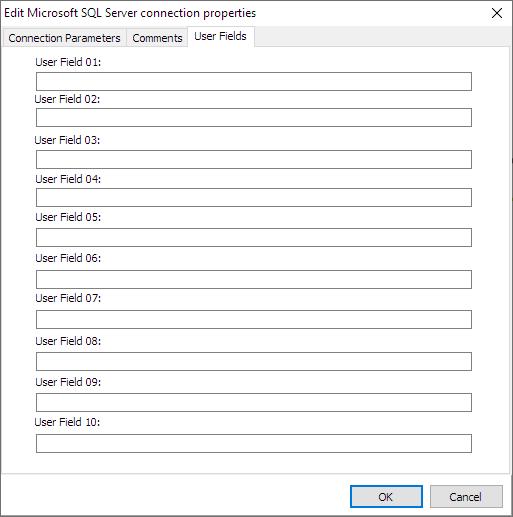
Note: User fields provide a convenient way of storing additional data
ODBC Drivers
Our software automatically selects the highest installed driver in the following order
- ODBC Driver 18 for SQL Server
- ODBC Driver 17 for SQL Server
- ODBC Driver 13 for SQL Server
- ODBC Driver 11 for SQL Server
- SQL Server Native Client 11.0
- SQL Server Native Client 10.0
- SQL Native Client
- SQL Server
Video Tutorial
We have more videos on ETL-Tools.com YouTube Channel,
Please take a look and subscribe to stay updated with the latest content.
Used by
- Microsoft SQL Server Reader
- Microsoft SQL Server Writer
- Database Loop Action
- Sql Script Action
- Sql Data Check Action
- Check Connection Action
- SQL To Text Dynamic Action
- SQL To XML Dynamic Action
- SQL To Insert Dynamic Action
- SQL To Excel Dynamic Action
- SQL To QVD Dynamic Action
- SQL To QVX Dynamic Action
- Select Value Action
- SQL Record to Variables Action
- SQL to Variables Action
Note: If you are planning to work with Microsoft Azure or fabric install Microsoft OLE DB Driver 19 for SQL Server and ODBC Driver 18 for SQL Server
Useful Links
For more technologies supported by our ETL Software see Advanced ETL Processor Versions
Confused? Ask question on our ETL Forum