Advanced-etl-processor
Excel Writer
Advanced ETL Processor gives the user various options to generate Excel files. It works with Sheets, Ranges and Tables. It is also possible to use templates.
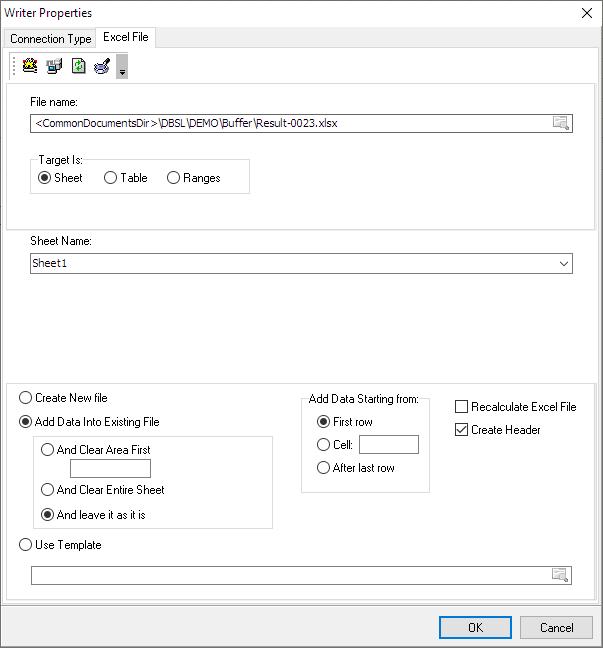
Working with Excel sheet
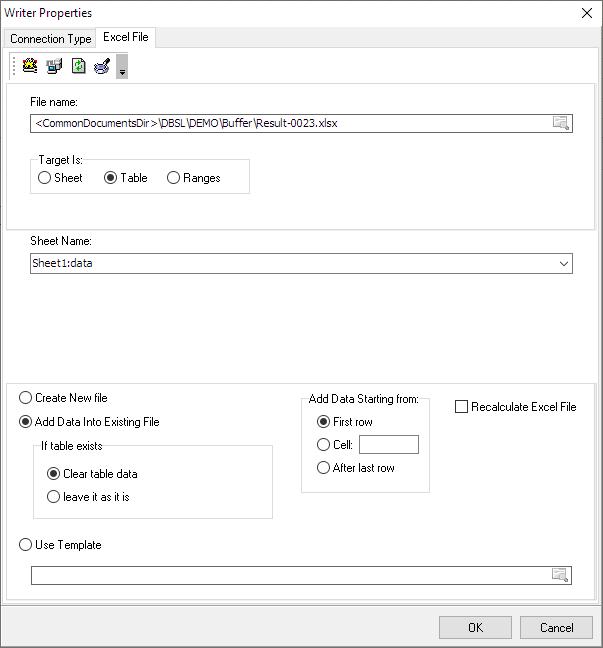
Working with Excel table
Working with Excel range

Creating a new Excel file
| Sheet Name | Create new file? | Add data starting from | Sheet Exists? | Range/Table Exists? | Notes |
|---|---|---|---|---|---|
| SheetName | Yes | Top | No | No | New file is created with the Sheet called “SheetName”, data is inserted from the top left corner |
| SheetName | Yes | Cell | No | No | New file is created with the Sheet called “SheetName”, data is inserted from the Cell |
| SheetName | Yes | Last Row | No | No | New file is created with the Sheet called “SheetName”, data is inserted from the top left corner |
| SheetName.RangeName | Yes | Top | No | No | New file is created with the Sheet called “SheetName”, data is inserted from the top left corner, a new range called “RangeName” is created with the size equal to the populated data |
| SheetName.RangeName | Yes | Cell | No | No | New file is created with the Sheet called “SheetName”, data is inserted from the Cell, a new range called “RangeName” is created with the size equal to the populated data |
| SheetName.RangeName | Yes | Last Row | No | No | New file is created with the Sheet called “SheetName”, data is inserted from the top left corner, a new range called “RangeName” is created with the size equal to the populated data |
Adding/updating data in the existing Excel file
| Sheet Name | Create new file? | Add data starting from | Sheet Exists? | Range/Table Exists? | Notes |
|---|---|---|---|---|---|
| SheetName | No | Top | No | No | New Sheet is created called “SheetName”, data is inserted from the top left corner |
| SheetName | No | Cell | No | No | New Sheet is created called “SheetName”, data is inserted from the Cell |
| SheetName | No | Last Row | No | No | New Sheet is created called “SheetName”, data is inserted from the top left corner |
| SheetName.RangeName | No | Top | No | No | New Sheet is created “SheetName”, data is inserted from the top left corner, a new range called “RangeName” is created with the size equal to the size of populated data |
| SheetName.RangeName | No | Cell | No | No | New Sheet is created “SheetName”, data is inserted from the Cell, a new range called “RangeName” is created with the size equal to the size of populated data |
| SheetName.RangeName | No | Last Row | No | No | New Sheet is created “SheetName”, data is inserted from the top left corner, a new range called “RangeName” is created with the size equal to the size of populated data |
| SheetName | No | Top | Yes | No | Within Sheet “SheetName”, data is replaced starting from the top left corner; the rest of the data within Sheet is left intact. |
| SheetName | No | Cell | Yes | No | Within Sheet “SheetName”, data is replaced starting from the cell, the rest of the data within Sheet is left intact |
| SheetName | No | Last Row | Yes | No | Within Sheet “SheetName”, data is inserted starting from the last empty row; the rest of the data within Sheet is left intact. |
| SheetName.RangeName | No | Top | Yes | No | Within Sheet “SheetName”, data is replaced starting from the top left corner, the rest of the data within Sheet is left intact, then new range called “RangeName” is created with the size equal to the size of populated data |
| SheetName.RangeName | No | Cell | Yes | No | Within Sheet “SheetName”, data is replaced starting from the cell, the rest of the data within Sheet is left intact, than new range called “RangeName” is created with the size equal to the size of populated data. |
| SheetName.RangeName | No | Last Row | Yes | No | Within Sheet “SheetName”, data is inserted starting from the last empty row, the rest of the data within Sheet is left intact, then new range called “RangeName” is created with the size equal to the size of populated data. |
| SheetName.RangeName | No | Top | Yes | Yes | Within Sheet “SheetName”, data is replaced starting from the top left corner of the range “RangeName”, the rest of the data within Sheet is left intact, then range “RangeName” size is set to the size of newly populated data. |
| SheetName.RangeName | No | Cell | Yes | Yes | Within Sheet “SheetName”, data is replaced starting from the cell, the rest of the data within Sheet is left intact, then range “RangeName” size is set to the size of newly populated data. |
| SheetName.RangeName | No | Last Row | Yes | Yes | Within Sheet “SheetName”, data is inserted starting from the last row of the range “RangeName” +1, the rest of the data within Sheet is left intact, then range “RangeName” size increased by the size of newly populated data |
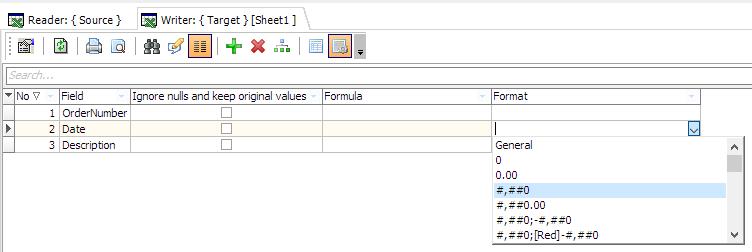
Excel cell formatting
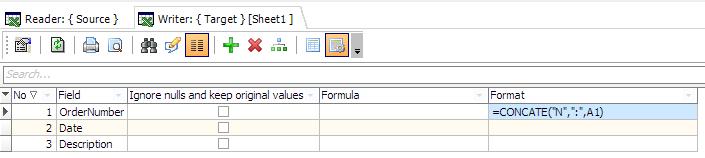
Formulas
Notes
1 To create date fields use the standard Date Format function

2 Untick “Recalculate Excel Files” to improve performance if the Excel file has no formulas
3 “Use Ignore nulls and keep original values” option to merge cells
Combining multiple data sources into a single excel file
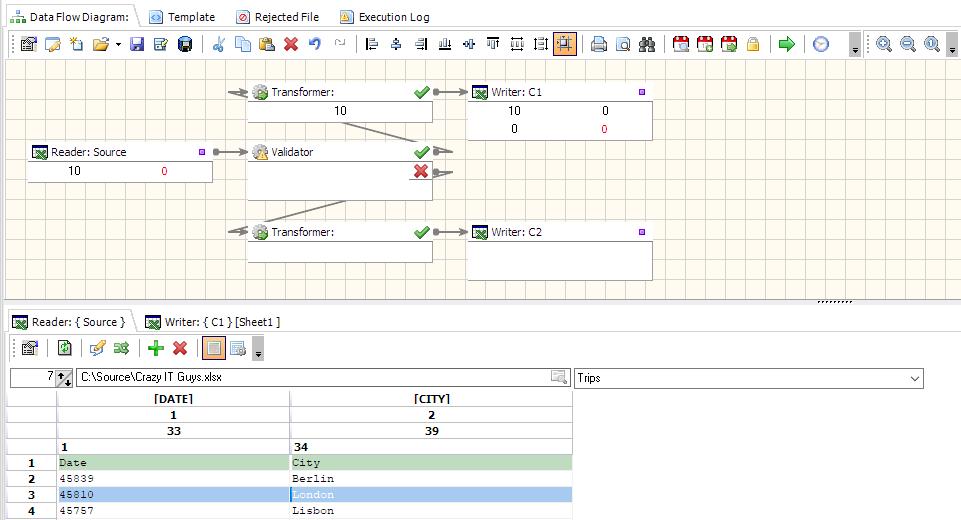
Point all writers to the same file. In the example below, “Writer C1” adds data to the C1 excel sheet and “Writer C2” adds data to the C2 excel sheet. This not only makes the life of our ETL software users easier but also improves performance.
Important notes
- Point all writers to the same file
- Make sure that Create a new file/Add Data Into Existing File is the same for all writers
- If one of the writers has selected “Recalculate Excel File” the file will be recalculated
Working with Excel Tables and Ranges
To see the list of Excel Tables and Ranges click Formulas tab, then Name manager

To create a new name range click Formulas tab, Define range

To create a new table click Home tab, Format as table

Video Tutorial
This tutorial demonstrates using excel templates to create multiple excel files
For more technologies supported by our ETL Software see Advanced ETL Processor Versions
Confused? Ask question on our ETL Forum