Advanced-etl-processor
Send Email Dynamic Action
About
The Send Email Dynamic Package Action is a robust and versatile tool that facilitates automated email sending within workflows. It offers support for both Plain Text and HTML email formats, and includes the ability to dynamically insert content and attach files. This action is ideal for a wide variety of use cases, ranging from simple notifications to complex, branded email campaigns with attachments, allowing businesses to communicate efficiently and professionally with clients, employees, or stakeholders.
Metadata tab

- The Write Variables option ensures that the “Package Action” logs the variable values into the “Action vars before log file” before the action is executed and logs the updated variable values into the “Action vars after log file” after the action completes.
- This option is typically used for debugging and is not recommended in a production environment.
- It can be globally disabled through the options dialog .
Parameters tab

Selecting Connection

Sending Plain Text Email Messages

Sending HTML Formatted Messages

Replace Variables
When selected the variables are replaced with values inside email body

Attachments

- Use mask to attach multiple files
- Separate multiple files by semicolon
Headers
Email headers specify specific sending and return options for an email. When sending via SMTP, you can use custom headers to do a great many things: customize messages, tag them, track them, or control specific behaviors.
For example:
- Set the X-Mailgun-Tag header if you’re using Mailgun’s “Topic” subscription functionality
- Set your own List-Unsubscribe header for specific emails (if you use our unsubscribe link, we add this header automatically)
- Stop emails from being shown as a thread by Gmail with the X-Entity-Ref-ID header
- Use X-Auto-Response-Suppress:OOF to suppress auto-replies from Exchange servers

Variables tab
The Variables tab defines which variables are updated during the execution of the action.
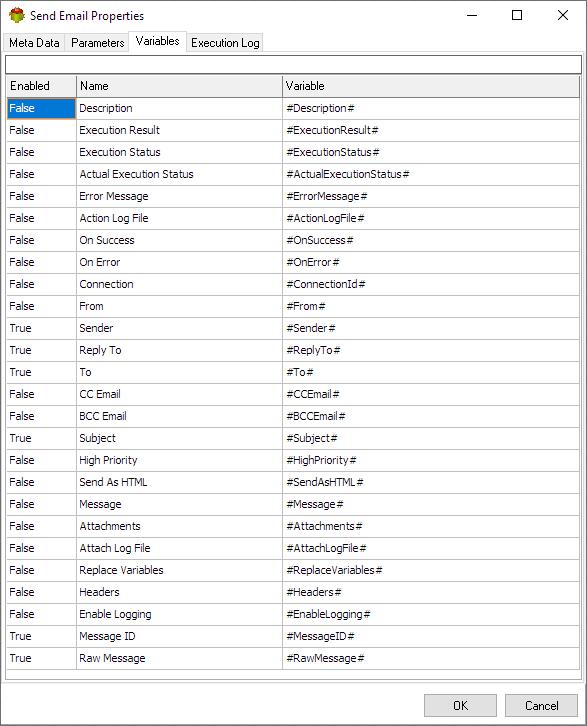
Execution log tab
The Execution Log tab is populated after the action has been executed. Double-click a row to view the detailed execution log.

Default Email footer
P.S. We are using Advanced ETL Processor here, so should you!
Download it from https://www.etl-tools.com
Related Actions
- IMAP4 Email Action
- IMAP4 Email Loop Action
- Office 365 Email Action
- Office 365 Email Loop Action
- Extract Email Attachments Action
- Check Email Message
Useful Links
Video Tutorial
For more technologies supported by our ETL Software see Advanced ETL Processor Versions
Confused? Ask question on our ETL Forum