Advanced-etl-processor
Office 365 Monitor
The Office 365 Monitor checks the Office 365/Outlook servers for new email messages.
- Multiple connections can be monitored
- Automatically performs user-defined tasks and actions
- Uses MSGraph API

Creating New Monitor
- To create a new Monitor select the “Event Monitors” tab and click New
- Dialog box will appear
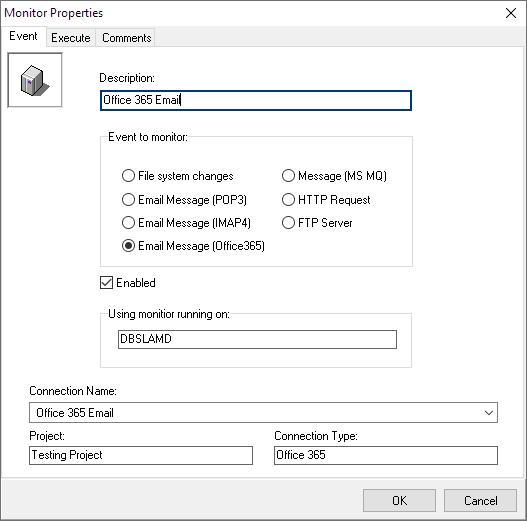
- Fill in the Description edit box with the name of the Monitor you are about to create
- Select Email Message (Office 365) as an event to monitor
- Change computer name if necessary
- Select Office 365 connection to monitor from the drop-down box
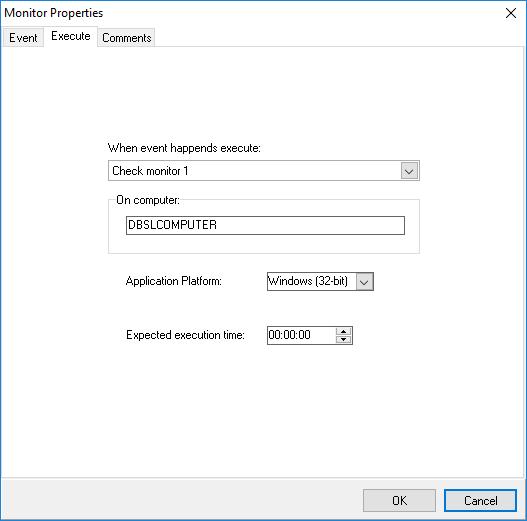
- Switch to execute tab
- Select object to execute
- Change computer name if necessary
- Change application platform if necessary
- Click OK to finish the creation of the Monitor
Installing Office 365 Monitor
Office 365 Monitor service is automatically installed during setup but not configured.
It can be also installed using the command line
To install the Office 365 Monitor as a service run the following command:
aetlmsgraphemailmonitor.exe /INSTALLfor Advanced ETL Processor
vimpmsgraphemailmonitor.exe /INSTALLfor Visual Importer ETL
If the Monitor is already installed it must be uninstalled first
To uninstall the Monitor as a Windows service you must run the Monitor with the /UNINSTALL switch as follows
aetlmsgraphemailmonitor.exe /UNINSTALLfor Advanced ETL Processor
vimpmsgraphemailmonitor.exe /UNINSTALLfor Visual Importer ETL
The commands above must be executed as administrator (elevated).
Configuring Office 365 Monitor service
It is recommended to run Office 365 Monitor using the same user used to design Packages/Transformations/SQL scripts.
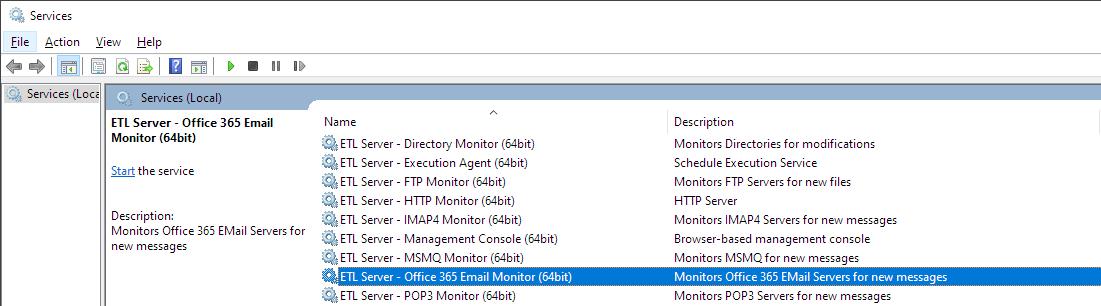
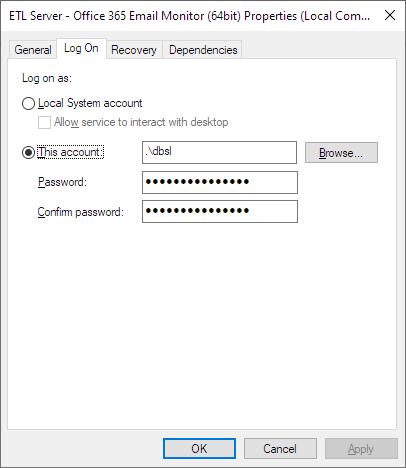
- Open windows services
- Find Office 365 Monitor in the list
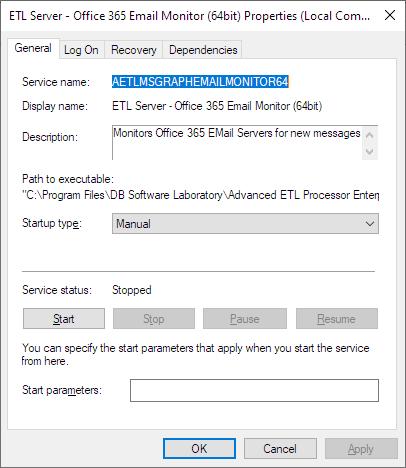
- Double click on it
- Dialog box will appear
- Set startup time to automatic
- Change username
- Start the service
Important Notes
- Office 365 Monitor is only available with Enterprise Version.
- Office 365 Monitor looks for new email messages to arrive (Event is fired when the number of unread messages is more than zero)
Checking Monitor Status
- Make sure that the monitor service is up and running
- Make sure that the monitor service is using the appropriate username and password
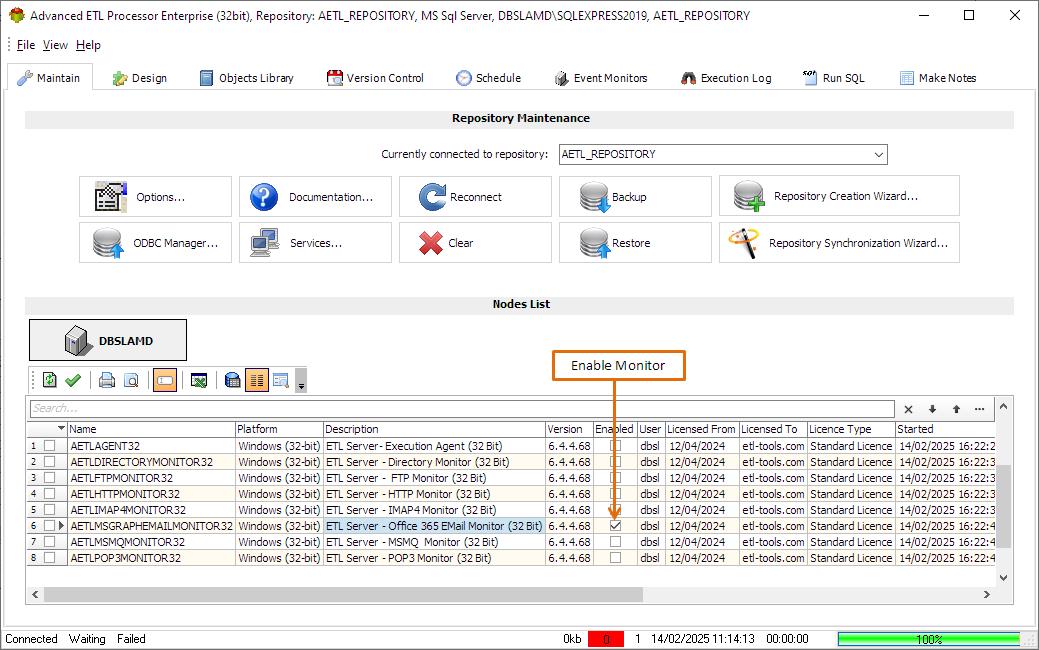
- Make sure that the monitor is enabled on the maintenance tab
- Make sure that the monitor is enabled on the Event monitors tab
- Make sure that the execution agent is configured properly
Monitor is enabled on Maintenance tab
Monitor is enabled on Event Monitors tab
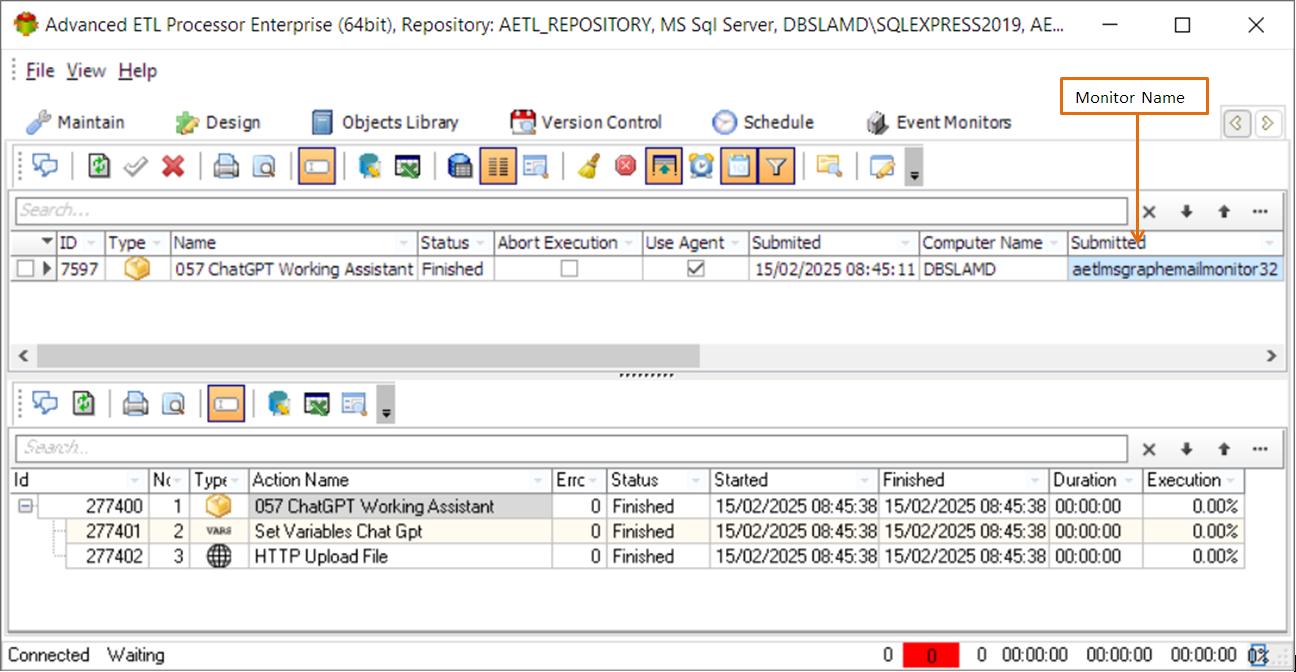
Action was submitted by Office 365 Monitor
Office 365 Monitor Variables
<Monitor ID>For more technologies supported by our ETL Software see Advanced ETL Processor Versions
Confused? Ask question on our ETL Forum