Working with Repository
Why it is important to know how to work with the repository?
The repository database holds all the crucial information about connections, transformations, packages, SQL scripts, reports, and execution logs. It serves as the storage for the ETL designer’s efforts, making it essential to protect, as losing this data would be detrimental.
Default Repository
The default repository is MS Access, which is suitable for development and small production environments. Occasionally, we recommend using the “compact and repair” feature in MS Access to maintain its performance. However, for larger production environments—such as when running packages in parallel every minute—we suggest using a more robust option like MS SQL Server Express. It’s free, easy to set up, and better equipped to handle the demands of high-volume operations.
Provider Not Found Error Message
After installing the 64-bit version of our ETL software, the user may encounter the error message above. This is because, by default, the 64-bit OLE driver for MS Access is not installed on Windows. While it is possible to install the 64-bit OLE driver for MS Access using our software, we strongly advise against it. The best approach is to use a more suitable database for the repository, such as MS SQL Server or Oracle, for better performance and reliability.
Installing MS Access Runtime
During the setup process, our software will install the Access runtime if the option is selected.
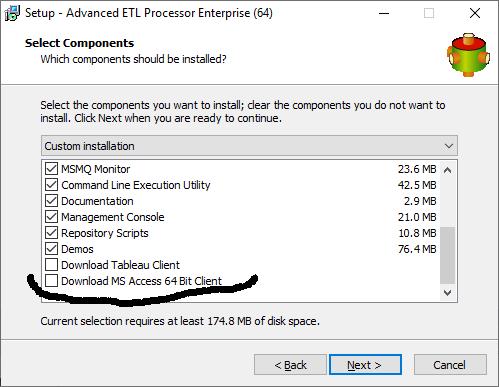
Installing the 64-bit Access runtime on a computer that already has the 32-bit version of MS Office installed can cause issues with MS Office, such as triggering a “Repairing MS Office installation” error message.

Creating Repository
The repository can be created by running a script or by using the repository creation wizard.\ They are located in C:\Users\Public\Documents\DBSL\Repository Scripts.
To create a new MS Access repository copy
C:\Users\Public\Documents\DBSL\Repository Scripts\Repository\Repository.mdb into the different directory and connect to it.
Default Repository Connections
During installation, default repository connections are automatically created for MS Access, Oracle, SQL Server, MySQL, and PostgreSQL. Upon the first launch of the application, it connects to the default MS Access repository.
Connecting to a Different Repository
- Click on the Maintain tab.
- Select the desired connection from the drop-down list.
- Click Reconnect.
If default settings are being used, all open objects will be saved, and the application will then connect to the selected repository.
Creating a New Repository
- Click the Maintain tab.
- Click Create New.
- Follow the steps in the wizard.
- Once the repository is created, connect to it.
Creating a New Repository Connection
To create a new connection to an existing repository:
- Click the Maintain tab.
- Click Options.
- Click the Plus icon.
- Fill in the necessary details.
- Test the connection.
- Click OK.
Backing Up the Repository
- Click the Maintain tab.
- Click Backup.
- Select the file to save the data into.
- Click Done.
Restoring the Repository
- Click the Maintain tab.
- Click Restore.
- Select the file to restore data from.
- Click Done.
Copying Repository Data from Development to Production Environment
- Connect to the development environment.
- Backup the repository.
- Connect to the production environment.
- Restore the repository.
Copying a Single Project from Development to Production Environment
- Connect to the development environment.
- Backup the repository.
- Connect to the production environment.
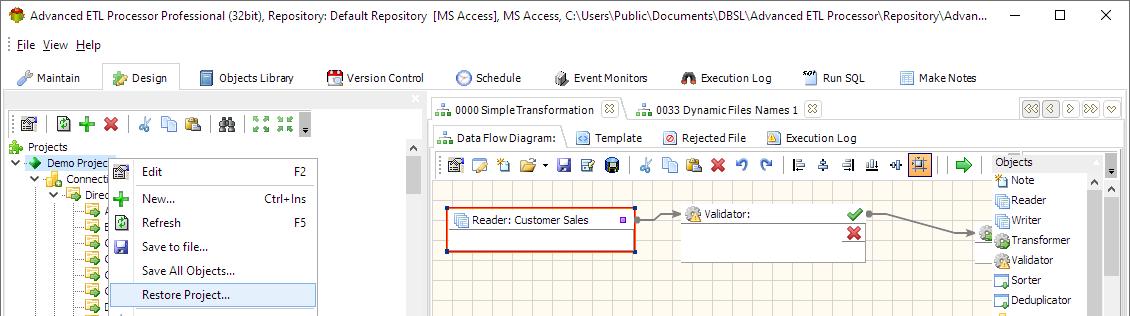
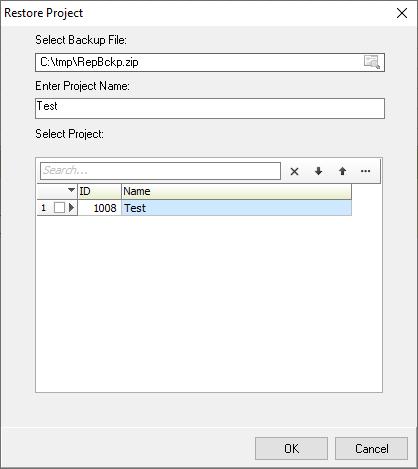
- Right-click on the object tree and click Restore project.
- Select the project to restore and click OK.
Repository Objects Synchronization
- Run the Repository Synchronization Wizard.
- Select the source repository or a repository backup.
- Select the target repository.
- Drag and drop source repository objects on top of target repository objects to update the target object.
- Drag and drop source repository objects into the target category to add a new object.
- Connect to the target repository and update connections if necessary.


Controlling the Size of the Repository
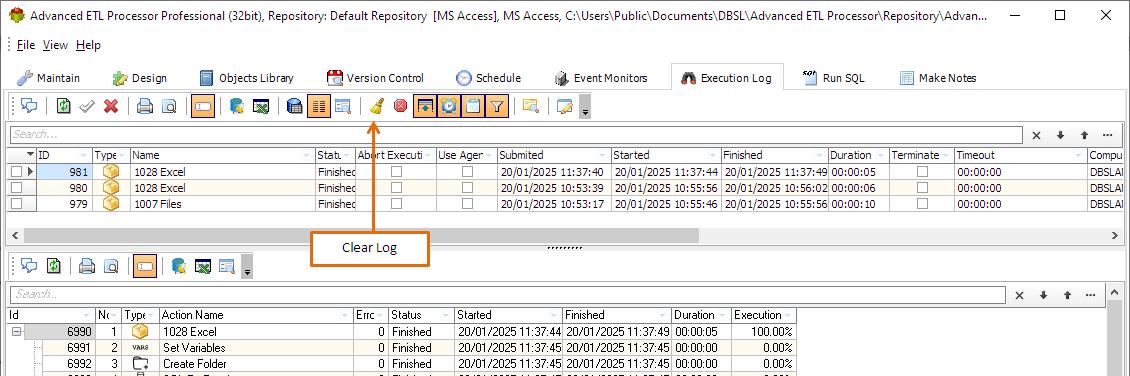
As scheduled tasks are executed, the size of the repository continuously increases. To prevent performance degradation, it may be necessary to periodically clear the execution log tables.
- Click the Execution Log tab.
- Click the Clear Log button.
Unable to Connect to the Repository Error
The default repository is MS Access. The 64-bit version of our software provides an option to install the 64-bit version of Access drivers. Without these drivers, the 64-bit version of the software cannot work with MS Access or use it as a repository.
We do not recommend using MS Access as a repository in production environments. It is essential to understand that the 32-bit version of the software requires 32-bit drivers and cannot use 64-bit drivers, and the same applies to the 64-bit version. Before installing the 64-bit version, ensure that the necessary 64-bit drivers, ODBC drivers, OLE DB providers, and clients are installed.
Video Tutorials
For more technologies supported by our ETL Software see Advanced ETL Processor Versions
Confused? Ask question on our ETL Forum