How to Automatically Move Files from One FTP Folder to Another
When managing data workflows, it’s common to organize files on FTP servers by moving them from one directory to another-such as from an “incoming” folder to a “processed” folder. Doing this manually, however, is inefficient and error-prone. That’s why learning how to automatically move files from one FTP folder to another is so valuable. With Advanced ETL Processor, you can automate this task entirely-no scripting, no manual file management, and no extra software required.
Why Automate File Movement Between FTP Folders?
Automating the movement of files between FTP folders helps maintain a clean and organized directory structure while ensuring that processed files are separated from new ones. This process is crucial for any workflow that handles large volumes of data or recurring file exchanges.
- Automatically organize files after processing
- Prevent duplication and overwriting of existing data
- Reduce manual file handling errors
- Keep FTP directories clean and efficient
- Enable full automation for end-to-end workflows
How Advanced ETL Processor Handles FTP File Transfers
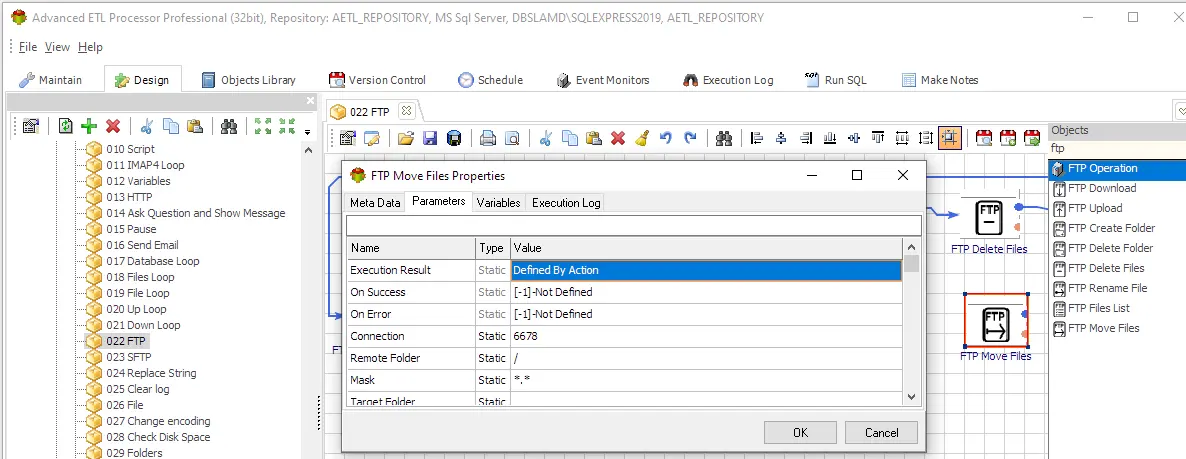
Advanced ETL Processor includes built-in FTP actions that let you connect to FTP, FTPS, or SFTP servers and move files from one folder to another automatically. You can define folder paths dynamically-based on file names, dates, or other variables-and schedule transfers to run at any time or event.
Everything Done Automatically-No Code Needed
With Advanced ETL Processor, there’s no need to write shell scripts or batch jobs. All FTP actions, including moving, renaming, and archiving files, are configured visually within the application. Once set up, the system handles file transfers reliably in the background.
Benefits of Using Advanced ETL Processor for FTP Automation
- Self-hosted platform: Your data and automation tasks stay within your own infrastructure.
- Visual configuration: Set up FTP file movement using drag-and-drop components-no programming required.
- Flexible scheduling: Run transfers on a schedule or based on event triggers.
- Robust error handling: Automatically retry failed transfers and send notifications.
- End-to-end workflow integration: Combine file movement with data validation, transformation, and loading tasks.
Useful links for FTP automation
Business usage examples
Retail Order Processing
Automatically move order files from “incoming” to “processed” folders after validation, ensuring that the next day’s imports only contain new data.
Logistics & Tracking Data
Transfer shipment reports from the temporary FTP folder to a secure archive once integrated into the main logistics database-fully automated.
Finance Data Management
Automatically move daily account exports to monthly archive folders and free up space in the live FTP directory-no manual work required.
Video walkthrough
FAQ
Can Advanced ETL Processor automate FTP, FTPS, and SFTP?
Yes. Advanced ETL Processor can automate FTP, FTPS, and SFTP transfers as part of scheduled workflows that also validate files, transform data, load targets, archive evidence, and log results.
Do I need scripts for FTP automation?
No. Routine downloads, uploads, folder operations, file listing, archiving, and cleanup can be configured visually. Scripts should be reserved for unusual edge cases, not daily transfer work.
Can files be validated after download?
Yes. A workflow can check filenames, file sizes, row counts, required fields, dates, checksums, and duplicate rules before the data is loaded or forwarded.
Can FTP jobs avoid duplicate processing?
Yes. Use archive folders, processed-file logs, timestamps, filename patterns, and business keys inside the file to prevent the same delivery from being processed twice.
Can files be archived after transfer?
Yes. Keep raw files, processed files, and run logs long enough for audit and support. Archiving before cleanup makes failed investigations much less painful.
Can failed transfers be retried?
Yes. Scheduled jobs can retry failed transfer steps, record the exact error, and send notifications so the failure is visible instead of hidden in a desktop script.
What should an FTP automation job log?
Log the server, folder, filename, file size, start time, finish time, transfer direction, status, retry count, and the exact error message when something fails.
When should FTP work not be automated yet?
Do not automate it until file naming rules, ownership, retention, credentials, duplicate handling, and the failure path are clear. Automation repeats rules; it does not repair vague ones.
Stop chasing EDI files by hand. Start processing new messages on arrival.
Use directory monitoring and consistent validation before data lands in your target.
Direct link, no registration required.