Which Tool Is Best for Excel Automation?
The best Excel automation tool depends on the job. Use VBA for workbook-specific desktop actions, Power Query for repeatable data shaping, Python for code-led integrations, RPA for user-interface work, and ETL software for repeatable workflows that connect Excel with other sources and run without a person present.
Choose by workflow, not by brand
Excel automation can mean several different things. It may mean formatting one workbook, importing a folder of files, refreshing a report, moving records into a database, or coordinating a process that starts with an email and ends with a notification.
Those are different engineering problems. The right question is not “Which tool is most powerful?” It is “Where should the workflow run, what systems must it connect, and who will maintain it six months from now?”
For a narrow task, a bigger platform can be unnecessary. For a recurring process with multiple sources, a small macro can become a hidden application with no owner. The honest answer depends on the boundary of the work.
Excel automation tools compared
Excel macros and VBA
Best for: workbook-specific actions, buttons, formatting, formulas, and user-driven desktop tasks.
Skill level: beginner to advanced Excel users, depending on the macro.
VBA is close to the workbook and can control Excel features that data tools do not expose. It is a sensible choice when users need to press a button, update a particular template, or automate a familiar desktop routine.
The trade-off is maintenance. Macro security, workbook versions, desktop availability, and hidden dependencies become part of the system. VBA is not the natural choice when a job must process files on a server or connect several non-Excel systems without a logged-in user.
Microsoft’s VBA documentation is the right starting point for understanding the model and its object libraries.
Power Query
Best for: importing, cleaning, combining, and reshaping data for Excel or Power BI.
Skill level: beginner to intermediate analysts who prefer a visual transformation workflow.
Power Query is strong when the main problem is data preparation. It gives analysts a repeatable sequence for filtering rows, changing types, combining files, and shaping data without writing a full program.
Its boundary appears when the process needs broader operational orchestration, such as database loading, file handling, cross-system notifications, rejected-record management, or unattended execution outside the analyst’s workbook or report.
See Microsoft’s Power Query overview for its intended data-connection and transformation model.
Python
Best for: developers who need custom logic, broad libraries, tests, APIs, and integration with application code.
Skill level: intermediate to advanced developers.
Python is flexible and can handle workbooks alongside web services, databases, files, and specialized libraries. It is a good choice when the logic is genuinely software development and the team can provide source control, environments, tests, monitoring, and support.
The cost is not just writing the first script. Someone must manage dependencies, credentials, deployment, failures, logging, and changes in input files. Python is excellent when that engineering ownership exists; it is a poor fit when a one-off script is being used as an unmaintained production scheduler.
The official Python tutorial is a useful reference for teams evaluating the programming route.
RPA tools
Best for: repetitive interaction with desktop applications or websites where no reliable data interface exists.
Skill level: beginner to intermediate automation builders, with specialist skills needed for production operations.
RPA can move data through an existing user interface, click through a legacy application, and bridge a process that has no usable API. That makes it valuable for some constrained environments.
Screen layouts, pop-ups, timing, permissions, and application changes can also break a bot. If the data is available through a file, database, or API, a direct workflow is usually easier to test and maintain than imitating a user.
ETL software
Best for: repeatable data movement, validation, transformation, file processing, scheduling, and cross-system workflows.
Skill level: beginner to advanced, depending on the transformations and operational requirements.
ETL software sits between a simple spreadsheet technique and a fully custom application. It is built around source-to-target workflows, so Excel can be one input or output among databases, text files, XML, JSON, APIs, email, FTP, and cloud storage.
The trade-off is that it may be more than you need for a single manual workbook edit. It becomes a better fit when the workflow is recurring, needs validation and logs, or must run on a schedule without relying on somebody’s desktop.
Practical examples: which tool fits?
Update a monthly template
If a person opens one workbook, refreshes formulas, adjusts a few cells, and checks the result, VBA or Power Query may be enough. Keep the process close to Excel if the workbook is the product and the operator is part of the review.
Combine a folder of spreadsheets
Power Query is a reasonable choice for analyst-led consolidation. If the folder must be processed every night, validated, archived, and loaded into a database, an ETL workflow is easier to operate. The guide to combining Excel files covers the data-quality side of this problem.
Call an API and enrich workbook data
Python is a strong option when the enrichment needs custom code or a specialized library. ETL software is a practical alternative when the API call, mapping, validation, output, and schedule fit the available workflow components.
Copy data from a legacy desktop system
RPA may be justified if the application exposes no reliable file or API interface. Before choosing it, check whether the vendor can provide an export or database connection. Direct data access usually avoids the fragility of screen automation.
Validate and publish recurring reports
When a process reads Excel, checks required fields, transforms records, creates a report, archives the source, and sends a notification, it has become a workflow rather than a workbook trick. This is where dedicated ETL software earns its place.
Where Advanced ETL Processor fits
Advanced ETL Processor Enterprise is aimed at repeatable production workflows, not at replacing every Excel formula or macro. Its useful boundary is the process around the workbook: read Excel or other sources, transform and validate data, write outputs, and run the job on your own infrastructure.
That can include Excel, text files, XML, JSON, databases, APIs, email, FTP, and cloud storage in the same broader workflow. The Enterprise product page documents scheduled and unattended execution, operational logging, rejected-record output, and monitoring for production ETL work.
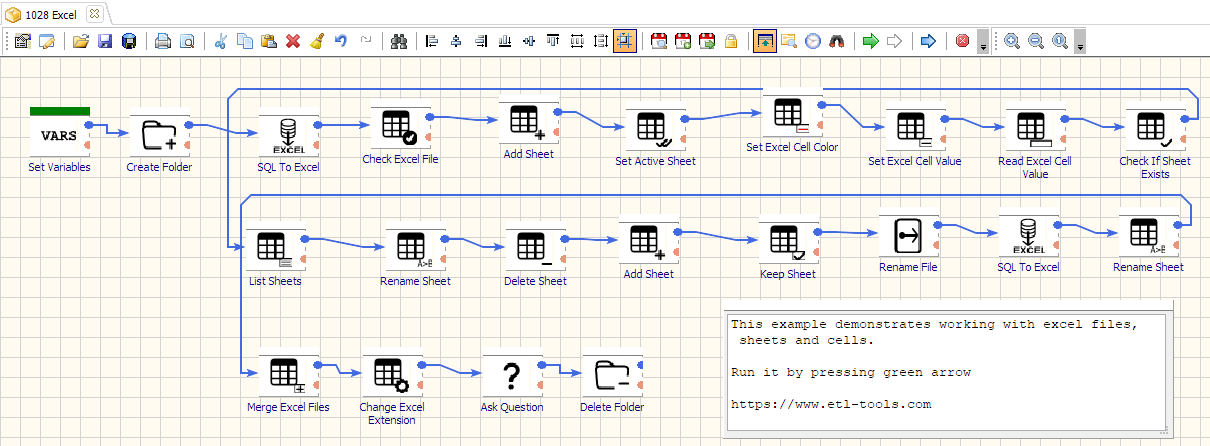
A practical Excel workflow might look like this:
- Receive workbooks from a folder, email, FTP location, or another source.
- Read the files and check required sheets, columns, data types, and values.
- Transform the clean records and load a database or create a report workbook.
- Archive source files, keep rejected records separate, and record the execution result.
- Schedule the process after it has been tested with representative files.
Use the Excel automation hub for workbook-specific examples, or follow the Advanced ETL Processor tutorials to see how workflows are assembled.
Excel automation decision checklist
- Is the job one workbook or several systems? One workbook points toward VBA or Power Query. Several systems point toward Python or ETL software.
- Does a person need to supervise each run? If yes, desktop tools may be fine. If no, select a solution designed for unattended execution.
- Is the interface the data source? If the process depends on clicking through a screen, RPA may help. Prefer files, databases, or APIs when they are available.
- How will failures be diagnosed? Plan for logs, rejected records, alerts, and a safe rerun before putting the workflow into production.
- Who owns maintenance? Choose a technology your team can test, deploy, monitor, and explain to the next person.
When not to use ETL software: if you only need to change a few cells in one workbook and a person will always review the result, a macro or manual process may be the honest choice.
FAQ
Which tool is best for simple Excel automation?
For a small, workbook-specific task, VBA or Power Query is often the most practical choice. Use VBA when the task depends on Excel actions and workbook controls; use Power Query when the main job is repeatable data import and shaping.
Is Python better than VBA for Excel automation?
Neither is always better. Python is usually a stronger fit for developers who need broader libraries, testing, and integration with other systems. VBA is often quicker for a team that already works inside Excel and needs to control a particular workbook.
When should I use RPA for Excel automation?
RPA is useful when the process must operate through an existing desktop application or website and no reliable data interface is available. It is usually a weaker choice for structured data movement when a direct file, database, or API workflow is possible.
When is ETL software better than Excel automation scripts?
ETL software is a better fit when Excel is one step in a larger process involving databases, files, APIs, validation, schedules, logs, or unattended execution. It keeps the workflow separate from a user’s desktop workbook.
Can Advanced ETL Processor automate Excel and other data sources?
Yes. Advanced ETL Processor Enterprise is designed for repeatable workflows that can combine Excel, databases, files, APIs, FTP, email, cloud storage, validation, logging, and scheduled unattended execution on your own infrastructure.
Test the workflow with your own files
Try Advanced ETL Processor Enterprise
Download the fully functional 30-day trial and test the Excel workflow alongside your databases, files, and other sources.