0020 How to remove spaces from file name
A practical Advanced ETL Processor example for building, testing, and adapting one automation workflow.
Use this example to build one working automation package, test it safely, and then adapt it to your own files, folders, or data rules. Start small. Automation is helpful; automated mistakes are just faster mistakes.
Remove spaces from file names automatically
This example shows how to rename files by removing spaces from their file names. It is useful when downstream systems dislike spaces in paths, filenames, or command-line arguments. Computers have had decades to get over spaces in names. Many still have not.
Run the example
- Download and install Advanced ETL Processor [Link]
- Download and unzip the example [Link]
- Create a new package and open the .wfp file.
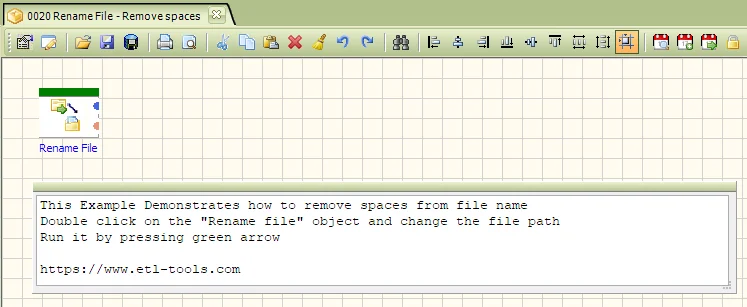
Configure the file operation
Amend the File Operation properties so the package points to the folder and file pattern you want to process. The rename operation uses the existing file name and writes a version without spaces.
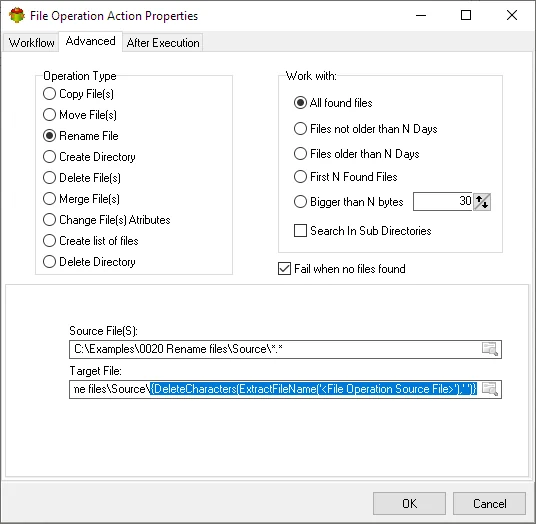
Run the package
Run the package by pressing the green arrow. Test it on a small folder first so you can confirm the renamed files are exactly what the next process expects.
More information
Related Advanced ETL Processor resources
For more automation examples, review the Advanced ETL Processor tutorials, read the WIKI, or download the Advanced ETL Processor Enterprise trial.