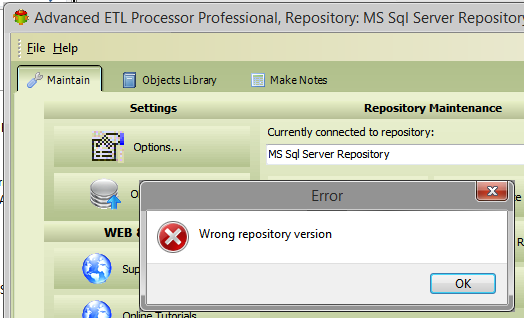
The Wrong Repository Version message usually means the software can connect to the repository database, but the repository tables are missing, incomplete, or from a version the current installation does not expect. In other words, the database answered the door, but the furniture is in the wrong rooms.
Advanced ETL Processor and Visual Importer ETL use the repository to store connections, transformations, packages, scripts, reports, schedules and execution logs. The repository is not just a settings file. Treat it like production data, because that is exactly what it becomes once jobs are running.
Check which error you have first
There are two common repository errors, and they point to different problems. Fixing the wrong one first is a fine way to lose an afternoon while the database quietly judges you.
Wrong Repository Version
This means the application connected to the database, but the repository structure is not valid for the installed version. The usual causes are an empty database, missing repository tables, a failed upgrade, or connecting a new product version to an old repository before running the required update.
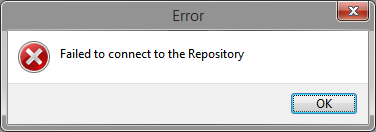
Failed to connect to the repository
This means the application could not connect to the repository database at all. Check the server name, database name, username, password, network access, firewall rules and database driver before changing repository tables.
Supported repository database types
The default repository database is MS Access. It is useful for testing and small local setups, but we do not recommend MS Access as a production repository. Use a proper database server for shared or automated environments. Scheduled jobs deserve something sturdier than a desktop file with ambition.
- MS Access
- SQL Server
- Oracle
- PostgreSQL
- MySQL
- Interbase/Firebird
Before you change anything
- Confirm which repository database the product is using.
- Create a repository backup if the database already contains working jobs.
- Stop services and schedulers connected to the repository.
- Check whether you need to create a new repository or update an existing one.
Create or update the repository
A new repository can be created with the repository creation wizard or by running the repository scripts manually. If you are upgrading an existing repository, use the matching update page for the feature or product version you are enabling.
The repository scripts are installed with the software and are available after installation in C:\Users\Public\Documents\DBSL\Repository Scripts\Repository.
These tutorials explain the basic repository workflow:
- 004 Learn How To Create Repository Database
- 005 Learn How to Create Repository Backups
- 006 Learn How to Perform Repository Synchronisation
After the repository opens
Restart the application and confirm that the repository tree opens without errors. If the message returns, check that you are connecting to the repository you updated. The wrong database can accept every SQL statement perfectly and still be completely irrelevant. Very database behaviour.