Extract Data From Excel Files Automatically
When you need to extract data from Excel files efficiently, relying on manual methods or complex macros can be both slow and error-prone. Advanced ETL Processor makes it easy to automate Excel data extraction, transformation, and loading-all without using Excel itself or writing a single line of code.
Manual Excel extraction does not scale
Copying rows out of spreadsheets by hand works until the second file arrives. Then the format changes, a column moves, someone adds a hidden sheet, and the monthly report starts behaving like it has legal representation.
Automation gives you the same extraction logic every run. Advanced ETL Processor reads the workbook, applies the rules, validates the data, and sends clean output to the target system. The original file stays untouched.
- Extract rows from one workbook or a folder of workbooks.
- Use the same sheet, range, mapping, and validation rules every time.
- Load Excel data into databases, text files, XML, reports, or another workbook.
- Schedule the workflow so the job runs without a person watching a progress bar.
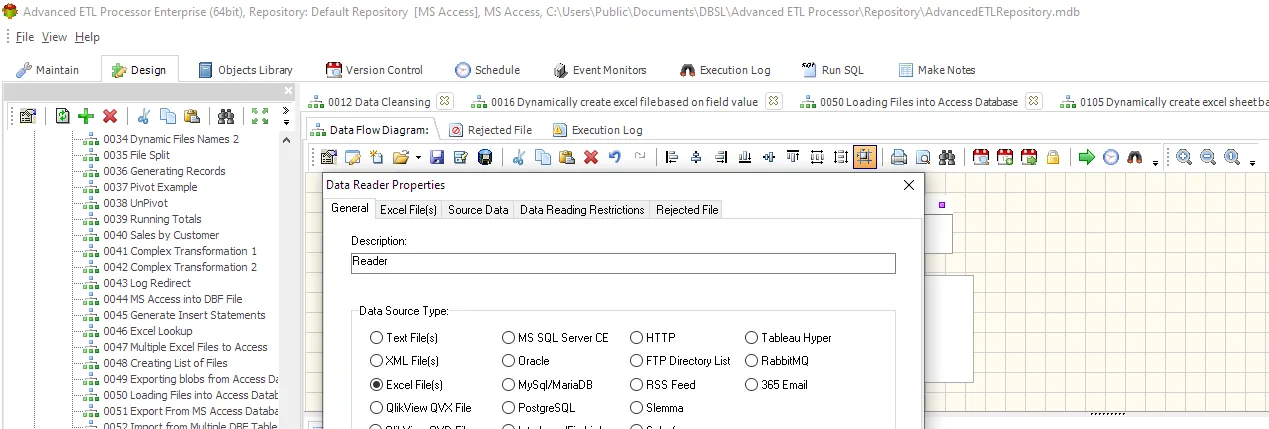
Advanced ETL Processor handles the workbook directly
Advanced ETL Processor reads Excel files directly through a visual workflow. You choose the Excel file, select the sheet, table, or range, map fields, add transformations, validate the result, and write the output where it belongs. No Excel installation is required on the server.
Build the workflow once
- Select the source Excel file or folder.
- Choose the sheet, range, or workbook structure to process.
- Apply filters, transformations, and data validation rules.
- Define the output destination, such as a database, text file, XML file, report, or Excel workbook.
- Run the process manually or schedule it for automatic execution.
You control the data and the schedule
- Self-hosted processing: Your data stays inside your environment. Your data is yours.
- Visual automation: Build the extraction without scripts, formulas, or macros.
- Validation before loading: Catch mixed data types, missing values, and bad records before they reach the target.
- Excel scale handled properly: Work with Excel worksheets up to 1,048,576 rows and 16,384 columns.
- Predictable execution: Run unlimited scheduled workflows with $0 execution fees and $0 row transfer fees.
Useful links for Excel automation
Start with the Advanced ETL Processor Enterprise overview, then download the fully functional 30-day trial. No registration is required. The Excel automation hub lists related workbook workflows.
Explore detailed documentation in the WIKI or follow step-by-step guides in the Video Tutorials.
If you get stuck, ask in our Support Forum. In most cases, support replies the same day.
Where automated Excel extraction earns its keep
Financial Reporting
Extract monthly Excel reports from multiple departments, standardise the data, validate totals, and load the result into your accounting database automatically.
Sales Data Consolidation
Collect sales data from regional Excel workbooks and merge it into one trusted dataset for analysis and reporting.
Inventory Management
Pull stock and product data from supplier Excel sheets, reject bad rows, and update your ERP system on schedule.
Video walkthrough
Excel data extraction questions
Does Advanced ETL Processor automate working with Excel files?
Yes. Advanced ETL Processor reads, creates, updates, splits, merges, validates, and schedules Excel workflows without Excel macros or hand-built scripts.
Do I need Microsoft Excel installed on the server?
No. Routine Excel automation runs as a self-hosted ETL workflow without opening Excel on the desktop.
Is Excel data validated before loading?
Yes. The workflow checks required fields, data types, duplicates, lookup values, date formats, and rejected rows before writing to a database or report.
Are failed Excel files separated from good files?
Yes. A workflow moves failed workbooks to an error folder, keeps the original file, writes logs, sends notifications, and continues with valid files.
Do Excel templates preserve formatting and formulas?
Yes. Template-based workflows keep layout, formulas, sheet structure, and formatting while filling the workbook with current data.
How should missing sheets or columns be handled?
Define the rule before scheduling: stop the job, skip the file, create a clear error record, or route the workbook to a review folder.
Is there a trial for Excel automation?
Yes. Download the fully functional 30-day trial and build a small Excel workflow first.
When should I not automate an Excel process yet?
Do not automate it until the workbook layout, sheet names, column rules, output folder, and failure handling are clear. Automation repeats rules; it does not read minds.
Stop fixing broken spreadsheets by hand. Start loading clean data automatically.
If your Excel imports fail every month, automate the workflow directly and keep raw files untouched.
Direct link, no registration required.