Automate Uploading Files to Google Drive
In modern IT environments, manual file transfers simply do not scale. If you need to Automate Uploading Files to Google Drive, relying on scripts or manual uploads quickly becomes inefficient and error-prone. With Advanced ETL Processor, you can fully automate Google Drive uploads using a self-hosted, no-code platform designed for professionals who need reliability, control, and flexibility.
Why Automate Google Drive Uploads?
Uploading files manually to Google Drive introduces delays and inconsistencies, especially when working with recurring data or large volumes. Automation ensures your files are always delivered accurately and on time.
- Eliminate repetitive manual uploads
- Ensure consistent file delivery
- Reduce operational overhead
- Improve collaboration across teams
- Integrate uploads into automated workflows
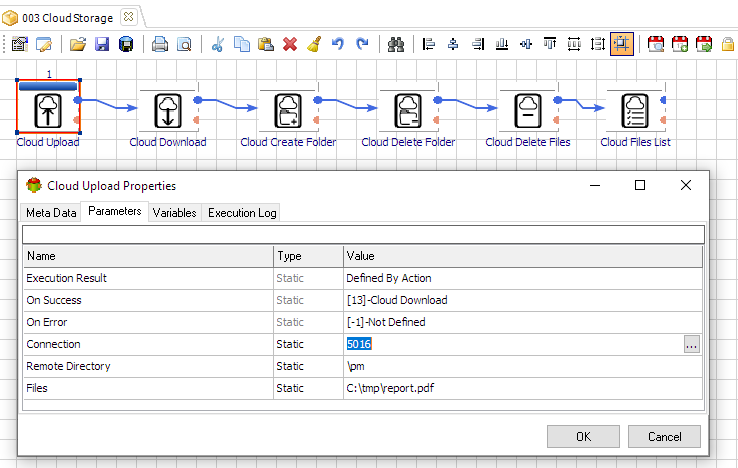
How Advanced ETL Processor Simplifies Cloud Automation
Advanced ETL Processor provides a visual environment where you can configure Google Drive upload workflows without writing any code. Everything is handled through intuitive components.
Key Benefits
- No scripting required - all automation is configured visually
- Self-hosted solution - full control over your infrastructure and data
- Flexible file selection - upload files based on rules, patterns, or triggers
- Scheduling support - automate uploads at defined intervals
- Integrated ETL workflows - combine uploads with data processing tasks
Typical Workflow
- Connect to Google Drive securely
- Select files or directories for upload
- Define destination folders and naming rules
- Schedule or trigger the workflow
- Monitor execution and logs
This structured approach ensures that uploads are consistent, reliable, and easy to manage at scale.
Why Choose a Self-Hosted Automation Tool?
With Advanced ETL Processor, all automation runs within your own environment. This self-hosted approach provides maximum control and security.
- No dependency on external automation services
- Enhanced data security and compliance
- Full ownership of workflows and processes
- Smooth integration with internal systems
Useful links for this cloud workflow
Start with the Advanced ETL Processor Enterprise overview, then download the fully functional 30-day trial. The cloud automation hub lists other Google Drive workflows.
Explore detailed documentation in the WIKI or follow step-by-step guides in the Video Tutorials.
If you need help, visit our Support Forum where our team is ready to assist you.
Business Use Cases
Automated Reporting
Upload generated reports to Google Drive automatically, ensuring stakeholders always have access to the latest data.
Data Integration Workflows
Automatically transfer processed data files to Google Drive for sharing, archiving, or further analysis.
Team Collaboration
Keep shared folders up to date by automatically uploading files, improving collaboration across departments.
Video walkthrough
FAQ
Can Advanced ETL Processor upload files in Google Drive?
Yes. Advanced ETL Processor can upload files in Google Drive, then log the run inside a self-hosted workflow.
Do I need custom scripts for this cloud workflow?
No scripting is required for the routine file operation, scheduling, validation, and logging steps. Use scripts only when a rule genuinely needs custom code.
When should I not automate it yet?
Do not automate it until permissions, naming rules, archive paths, and failure handling are clear. Cloud storage repeats bad rules very efficiently.
Can I test it before buying?
Yes. Download the fully functional 30-day trial and build one small workflow first. Use a test folder before touching production files.
Can this cloud step run with other ETL tasks?
Yes. The Google Drive step can run before or after validation, transformation, database loading, report generation, archiving, and notifications.
What should be logged?
Log the account, folder or bucket, filename, size, start time, finish time, status, and exact error message. Cloud jobs without logs become archaeology.
How should permissions be configured?
Use a dedicated Google Drive account or app registration with only the permissions needed for this workflow. Shared personal credentials are usually the first thing to break.
Can failed files be handled separately?
Yes. Route failed files to an error folder, keep the original input, write the run log, and retry only after the rule or source file is fixed.
Stop struggling with fragile ETL scripts. Start shipping reliable workflows.
Download the fully functional 30-day trial. Build your first automation in 10 minutes or less.
Direct link, no registration required.